Need to hide a detail in a PDF before sharing it? Maybe a phone number on a contract, a price on an invoice, or personal info on a medical form — covering it up is quick and easy if you have the right tool.
In the physical world, you reach for a bottle of white correction fluid. In the digital world, you need a whiteout tool that lets you paint over text, block out sections, or redact entire paragraphs — all without sending your document to a server somewhere.
Here's how to whiteout content in a PDF online, completely free, and with full privacy.
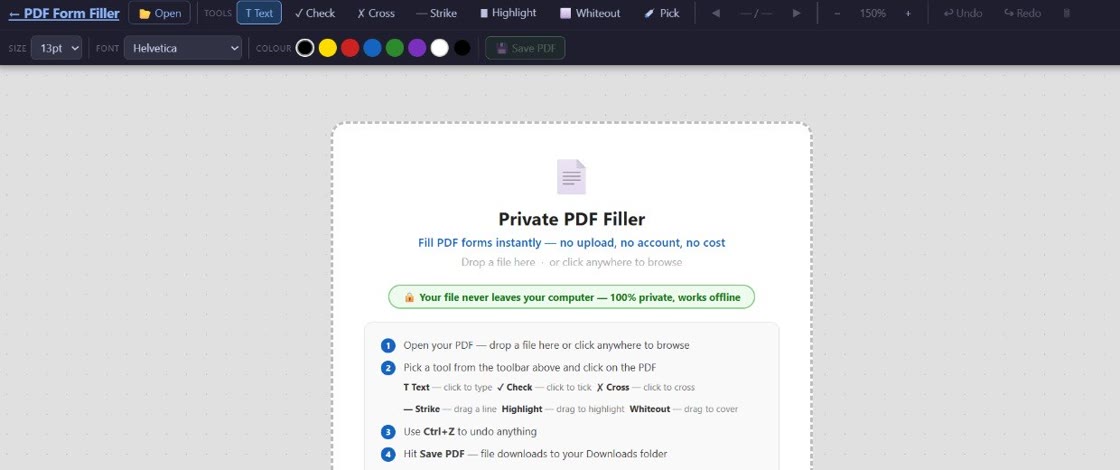
The short version: Open your PDF in PDF Form Filler, select the whiteout / rectangle tool, and draw boxes over any content you want to hide. Your file never leaves your device. No uploads, no copies stored elsewhere.
What Does "Whiteout" Mean in a PDF?
Whiteouting in a PDF means covering content with a solid-coloured rectangle so it's no longer visible. Think of it like applying correction tape or paint over a word on a printed page — the underlying text is still there, but nobody can see it.
This is different from deleting text. When you delete text in a PDF editor, the remaining content might reflow, shifting the layout of the entire page. A whiteout box stays exactly where you put it: it covers what's underneath without moving anything else on the page.
The result is a clean document where the sensitive information is simply gone from view. You can download, print, or share the PDF, and the whiteout stays in place.
When Would You Whiteout a PDF?
People whiteout PDFs for all sorts of reasons — here are some of the most common scenarios:
Contracts and agreements
Cover pricing terms, discount rates, or confidential clauses before sending a contract to a third party who only needs to see certain sections.
Medical forms and records
Redact patient names, ID numbers, diagnoses, or any personal health information (PHI) before sharing records for research, referrals, or insurance.
Academic transcripts and certificates
Hide student numbers, addresses, or other identifying fields when sharing unofficial transcripts or proof of enrolment.
Employment documents
Whiteout salary figures, employee IDs, or performance notes when sharing HR documents with internal teams or external auditors.
Legal filings and discovery
Redact privileged or irrelevant information in legal documents before filing with a court or sharing with opposing counsel.
How to Whiteout a PDF Online — Step by Step
Here's exactly how to whiteout content in a PDF using PDF Form Filler:
Open PDF Form Filler in your browser
Go to the app at pdfformfiller.buildai.nz/app/. No sign-up, no download, no installation.
Open your PDF file
Click to open your PDF from your device. Because everything runs locally in your browser, the file stays on your computer the entire time.
Select the whiteout / rectangle tool
Choose the shape or rectangle annotation tool — it works just like drawing a coloured box on top of your document.
Draw over the content you want to hide
Click and drag to create a box over any text, image, or data you want to cover. Position it exactly — you can resize or move it after drawing.
Download your redacted PDF
Save the file to your device. The whiteout boxes are embedded in the PDF and will stay in place when viewed, printed, or shared.
Important: Whiteout covers content visually, but the underlying text may still exist in the PDF file itself. For truly sensitive documents where you need to permanently remove data, consider a proper redaction tool that strips the underlying content from the file. For most everyday purposes — covering a phone number, hiding a price, blocking out a name — whiteout is perfectly sufficient.
Can You Change the Colour of the Whiteout Box?
Yes. While "whiteout" typically implies a white box (the digital equivalent of correction fluid), you're not limited to white. You can choose any colour:
White — The classic choice. Matches the paper background of most PDFs and looks like nothing was ever there.
Black — Often used for proper redaction. A black box signals that content has been intentionally removed, which can be legally important in some contexts.
Custom colours — Match the background of a coloured document or highlight a section you've obscured (e.g., a grey box on a grey form).
Colour choice matters for more than aesthetics. If you're whiteouting for official or legal purposes, black bars are the standard for indicating redaction. For everyday use, white is the most natural-looking option.
Whiteout vs. Deleting Text — What's the Difference?
This is one of the most common points of confusion, so let's be clear:
Deleting text removes characters from the document's content stream. Depending on how the PDF editor handles it, surrounding text may reflow and change positions, potentially breaking the layout of your document.
Whiteouting places a solid shape on top of the content. The underlying text stays in the file but is visually covered. The layout of the page is completely preserved — nothing shifts or reflows.
For most use cases — covering up a field on a form, hiding a line in a contract — whiteout is the safer, cleaner choice. It's non-destructive, easily adjustable, and guarantees your document looks exactly the way you intended.
Can You Undo a Whiteout?
Yes — as long as you haven't saved and closed the document. While you're editing in PDF Form Filler, you can:
Delete the box — Select the whiteout shape and press delete to remove it entirely, revealing the content underneath.
Undo with keyboard shortcuts — Ctrl+Z (Cmd+Z on Mac) undoes your last action, including any whiteout boxes you've added.
Move or resize — If the box isn't positioned perfectly, you can drag it to a new location or adjust its size before finalising.
Once you download the file, the whiteout boxes become permanent. If you need to change something after downloading, you'll need to open the original PDF again and reapply the whiteouts. Keep the original untouched version as a backup if you think you might need to make changes later.
Is This Really Private?
Yes — and that's the whole point. PDF Form Filler processes everything locally inside your browser using JavaScript. No file data is sent to any server at any point.
This is fundamentally different from traditional "online" PDF tools that require you to upload your document to their cloud infrastructure. With those tools, your document travels over the internet, is stored on someone else's hardware, and may persist in backups or logs.
With PDF Form Filler, your document never leaves your device. You open it locally, edit it locally, and save it locally. There's no server in the loop. No upload queue. No temporary storage. No data center.
Privacy guarantee: Your file never touches a server. Not ours. Not anyone else's. The whiteout you apply happens entirely on your own machine.
Frequently Asked Questions
Can I whiteout text in a PDF without Adobe?
Absolutely. You don't need Adobe Acrobat or any paid software. PDF Form Filler runs in your browser and includes a whiteout tool that lets you draw rectangles over any content. It's free, works on any device, and requires no installation.
Is whiteout different from deleting text?
Yes. Whiteout covers text with a coloured box but leaves the underlying content in place (just hidden from view). Deleting text removes characters from the document, which can cause surrounding content to shift and change the page layout. Whiteout preserves the original layout.
Can I change the colour of the whiteout box?
Yes. You can choose any colour for the box — white for a clean look, black for formal redaction, or a custom colour to match the document background. The colour picker is available in the annotation tools.
Can I undo a whiteout?
Yes, while you're still editing. Use Ctrl+Z (Cmd+Z on Mac) or select and delete the whiteout box. Once you download the file, the whiteout becomes permanent — so keep a backup of the original if you might need to make changes.
Is this really private?
Yes. PDF Form Filler runs entirely in your browser. Your file is never uploaded to any server — it stays on your device from start to finish. There is no data transmission, no temporary cloud storage, and no third-party access to your document.
Quick Tips for Clean Whiteouts
To make your whiteouts look professional and intentional:
Use the right colour. On a white document background, white boxes are nearly invisible. On coloured or ruled paper, match the background colour for a seamless look.
Mind the margins. Draw boxes that extend just slightly beyond the text you're covering — too small and text peeks out, too large and it looks messy.
Stay consistent. If you're whiteouting multiple sections on one page, keep the boxes roughly the same size and alignment for a tidy appearance.
Check the result. Before sharing, view the PDF at 100% zoom to make sure nothing unintended is visible around the edges of your whiteout boxes.
Whiteout your PDF — privately
Cover text, hide info, and redact sensitive content. All in your browser. All free.
👉 Start whiteouting your PDF — free