Whether you're filling out a tax return, completing a consent form, marking items off a checklist, or signing off on a delivery docket, there's one symbol you'll need more than any other: the humble checkmark.
But PDF forms don't always come with clickable checkboxes. Sometimes you just need to drop a ✓ into a blank square, a tick next to an option, or a cross into a "no" field. Doing this without Adobe Acrobat — or without uploading your file to some unknown server — has been frustratingly hard. Until now.
Here's exactly how to add a checkmark (or a cross, or any symbol) to any PDF, entirely in your browser, with nothing leaving your device.
No upload needed: The method described here works entirely inside your browser. Your PDF never leaves your computer. No servers, no accounts, no data exposure.
Why You'd Need to Add a Checkmark to a PDF
Checkmarks and crosses are the universal language of form filling. You'll encounter scenarios like these often:
Tax and government forms — IRD returns, visa applications, and census forms frequently use empty square boxes (☐) where you're expected to place a ✓ or ✗ to indicate your selection.
Checklists and inspection forms — Pre-flight inspections, safety checklists, equipment handover logs — these are almost always PDFs with rows of empty boxes waiting for a tick to confirm completion.
Consent and waiver forms — Medical consent, event waivers, photography releases. A tick in a box is often the legally recognized way to indicate agreement.
Assessment and grading sheets — Teachers and examiners often work with PDF mark sheets where correct answers are indicated with a tick and incorrect ones with a cross.
How to Add a Checkmark to a PDF: Step by Step
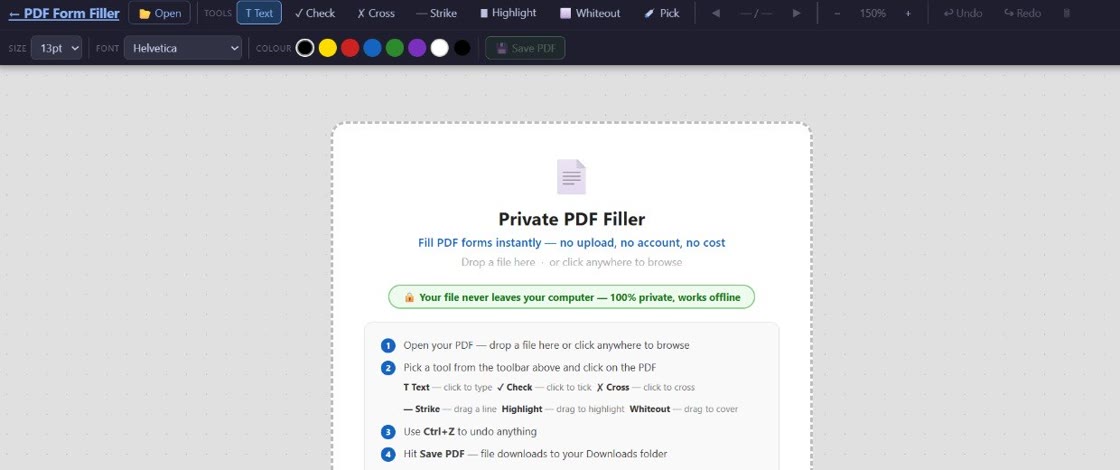
Here's the quickest way to add a checkmark to any PDF using PDF Form Filler — no software to install, no file to upload.
Open PDF Form Filler in your browser
Go to the app and click anywhere on the upload area. Select the PDF you want to edit from your computer. The file opens instantly — and it never leaves your device.
Click the Text tool on the toolbar
From the left-hand toolbar, select the Text icon (T). This places you into text-entry mode, ready to type anywhere on the document.
Click on the checkbox or location
Click directly on the checkbox (☐) or the spot where you want the checkmark to appear. A text box will appear at that location.
Type or paste a checkmark symbol
Type ✓ (or paste one from below). You can also use a cross ✗, a heavy checkmark ✔, or any Unicode symbol. The symbol will appear exactly where you placed your text box.
Position, resize, and save
Drag the checkmark to fine-tune its position. Adjust the font size so it fills the checkbox neatly. When you're happy, click the Download button to save your completed PDF.
Common Symbols You Can Insert
Here are the most frequently used symbols for marking PDF forms. You can copy any of these and paste them directly into your document:
Tip: Use a heavy checkmark ✔ for printed forms (it's bolder and more visible on paper) and a standard checkmark ✓ for digital forms viewed on screen. Use ✗ or ✘ when you need to mark a "No" or "Incorrect" selection.
Will My Checkmarks Look Professional?
Yes. Because PDF Form Filler renders text using standard fonts embedded in your system (or the fonts already in the PDF), the checkmarks you add look exactly like any other text in the document. They're not clumsy stamps or low-resolution image overlays — they're proper Unicode characters embedded as text content, just like the form's original labels.
You can control the font size, colour, and positioning precisely. A checkmark placed neatly inside a checkbox with the right size and alignment is virtually indistinguishable from one that was part of the original form design.
For the best results, zoom in while positioning your checkmark and use a font size that matches the height of the checkbox (typically 10–14pt for standard form checkboxes).
Can I Add a Cross / Multiply Symbol Too?
Absolutely. The same method works for any Unicode symbol. Crosses (✗, ✘) are commonly used for "no" selections, negative responses, or incorrect items on a checklist. You can also use a multiplication sign (✕) for a cleaner, minimal look.
Simply paste the symbol you want instead of a checkmark in step 4 above. You can mix checkmarks and crosses on the same page — ideal for marking right/wrong answers on test papers or yes/no selections on consent forms.
Do I Need to Upload My PDF to Add Checkmarks?
No. PDF Form Filler processes everything locally in your browser. When you open a PDF in the app, your file is read using JavaScript and rendered onto an HTML canvas directly on your device. No data — not a single byte — is transmitted to any server.
This is the fundamental difference between PDF Form Filler and traditional online PDF editors. Services like Smallpdf, ILovePDF, and even Adobe's web tools require you to upload your file to a remote server for processing. With PDF Form Filler, the file never leaves your computer. You can unplug your internet after loading the page and everything will still work.
Privacy matters: When you use server-based tools, your document — which may contain your name, address, financial details, or medical information — travels over the internet and sits on someone else's hardware. With local processing, that exposure is eliminated entirely.
Common Questions About Adding Checkmarks to PDFs
How do I add a checkmark to a PDF without Adobe?
You don't need Adobe Acrobat, or any paid software, to add checkmarks to a PDF. Use a browser-based PDF editor like PDF Form Filler. Open the PDF, click the Text tool, click on the checkbox location, and type or paste a checkmark symbol (✓). No installation or payment required.
Can I add a cross/multiply symbol too?
Yes. The same text tool lets you insert any Unicode symbol. Paste ✗ (ballot X), ✘ (heavy ballot X), or ✕ (multiplication sign) wherever you need a cross. Use checkmarks for "yes" and crosses for "no" on the same form.
Will my checkmarks look professional?
Yes. Checkmarks are rendered as proper text using your system fonts, not as low-resolution image stamps. You can adjust the size, colour, and position precisely to match the surrounding form fields. A well-placed checkmark is indistinguishable from native form content.
Do I need to upload my PDF to add checkmarks?
No upload is needed. PDF Form Filler runs entirely in your browser using local processing. Your file never leaves your device. No servers, no accounts, no data transmission — the whole process is private by design.
Tips for Perfect Checkmark Placement
Match the font size. Standard checkbox squares are usually 10–14pt in size. Set your checkmark text to the same size for a natural fit. Zoom in to check alignment.
Use consistent symbols. If you're filling a form with multiple checkboxes, use the same symbol everywhere. Mixing ✓ and ✔ on the same form can look inconsistent unless there's a deliberate reason (e.g., ✓ for "yes" and ✔ for "strongly agree").
Align carefully. Clicking exactly inside the checkbox produces the best results. If your first click is slightly off, just drag the text box into position — there's no penalty for adjusting.
Consider the output format. If you're printing the form, a heavy checkmark ✔ or checked box ☑ reproduces better on paper. For digital-only viewing, a standard ✓ is perfectly legible.
Add a checkmark to your PDF in seconds
Free, private, no upload required. Works on any PDF in your browser.
👉 Try PDF Form Filler now