You need to add text to a PDF. Maybe it's a job application that arrived as a locked form. A rental agreement your landlord wants filled in. A consent form from the doctor's office.
The obvious move is to hunt for a free PDF editor — but nearly all of them make you upload your file first. Your passport photo, bank details, or home address go straight onto someone else's server before you've even typed a word.
There's a better way. You can add text to any PDF directly in your browser, without uploading anything at all. Here's how it works and why it's the only approach you should trust with real documents.
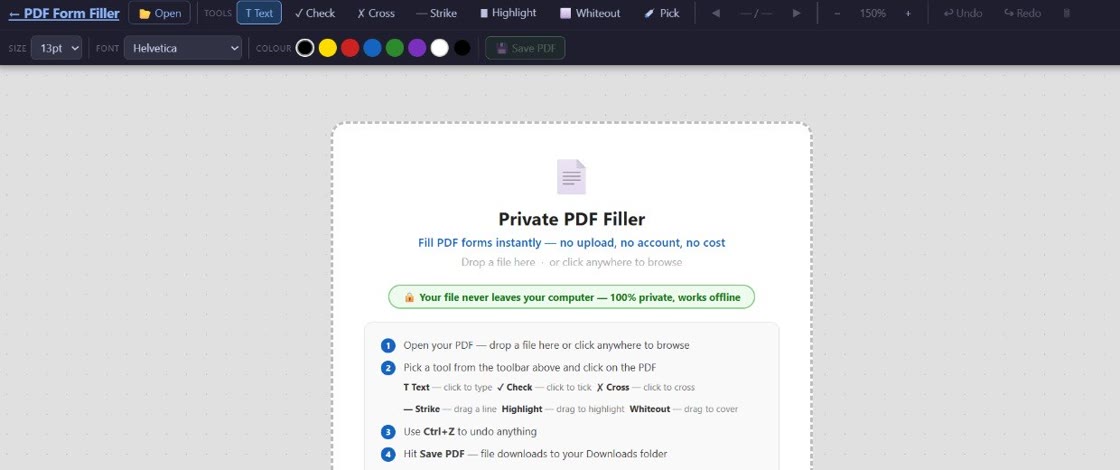
Key difference: Most online PDF editors send your file to a remote server for processing. PDF Form Filler runs entirely in your browser — your file never leaves your device. Adding text is as simple as clicking where you want to type and starting to type.
How to Add Text to a PDF Online Without Uploading
The process is straightforward. You don't need to install software, create an account, or hand over your document to a third party. Here's what it looks like in practice:
Open PDF Form Filler in your browser
Go to the app from any modern browser — Chrome, Edge, Firefox, or Safari. Everything happens locally on your machine, so there's no server involved.
Load your PDF from your device
Select the file from your computer. The PDF opens inside your browser and stays there. Nothing is uploaded, transmitted, or stored externally.
Click anywhere to start typing
Click on any field or area of the page. A text input appears. Type your content — answers, signatures, notes, or annotations — directly onto the document.
Adjust placement and appearance
Drag text boxes to reposition them. Change font size or style as needed. The PDF updates in real time right in your browser.
Save the completed PDF to your device
Download the finished document. It saves directly to your computer — just like any other file. No server has ever touched it.
What Makes This Different From Upload-Based Tools
The difference isn't just philosophical — it's technical. Upload-based editors follow a fundamentally different architecture:
When you upload a PDF to a service like Adobe Acrobat Online, Smallpdf, or ILovePDF, your file travels from your device to a remote data centre. Server-side software opens your document, applies the changes you requested, and sends the result back to you. Your data sat on someone else's hardware — even if only for a few minutes.
When you work locally with a browser-based tool like PDF Form Filler, the PDF never leaves your device. The app uses your browser's built-in capabilities to render, edit, and save the document. There is no data centre in the loop. Your document exists only on your computer from start to finish.
Worth noting: Even well-known PDF services typically store uploaded files for some period — often 1 to 24 hours. Some claim to delete them sooner, but there's usually no way to verify this independently. With a local tool, there's nothing to verify because nothing was ever uploaded.
When You Might Need to Add Text to a PDF
The scenarios are more common than you might think. Here are some of the most frequent situations where adding text to a PDF is essential:
Job applications. Many employers send PDF forms that need to be filled digitally. Adding your name, contact details, experience, and references directly into the document saves printing and scanning.
Contracts and agreements. Rental leases, service contracts, and freelance agreements often arrive as PDFs. Adding your details, dates, and countersignatures keeps everything in one clean file.
Medical and consent forms. Doctors, dentists, and specialists frequently request intake forms in PDF format. Adding patient information, medical history, and consent statements digitally avoids the back-and-forth of printing.
Government and official forms. Visa applications, tax declarations, and benefit claims are almost always distributed as PDFs. Filling them on-screen is faster and more legible than handwriting.
Education and academic documents. Course registration, permission slips, and feedback forms from schools and universities are commonly sent as PDFs. Adding text directly makes them easy to submit electronically.
What Happens to Your Document When You Add Text
When you add text to a PDF using a local browser tool, here is precisely what happens — and what does not happen:
The original PDF stays intact. The underlying document structure is preserved. Your added text is placed as a new layer on top of the existing content. Nothing is deleted, altered, or removed unless you explicitly do so.
Text is rendered as a page annotation. The typed content becomes part of the PDF's annotation layer — the same mechanism used for comments, highlights, and sticky notes in PDF readers. This means your added text is visible when the PDF is opened in any standard PDF viewer.
The file size increases slightly. Adding text adds data to the PDF file, so the final file will be a bit larger than the original. The increase is usually negligible — typically just the size of the font data and text content.
Nothing is transmitted anywhere. Because processing happens locally, your document never contacts a remote server. There is no upload step, no temporary storage, and no data transfer beyond saving the file to your own device.
Bottom line: Adding text to a PDF locally is exactly as private as editing a Word document on your desktop. The file never leaves your computer.
Can I Add Text to Any PDF Without Adobe?
Yes — and you don't need Adobe Reader, Acrobat Pro, or any paid software to do it. Modern browsers can render and edit PDFs natively, and tools like PDF Form Filler build on that capability to provide a full text-adding experience without any downloads or installations.
The only requirement is a reasonably up-to-date browser. Chrome, Edge, Firefox, and Safari all support the underlying web technologies that make local PDF editing possible. If you can view a PDF in your browser, you can add text to it.
Adobe Acrobat's free online tools also let you add text — but they require an upload. The distinction matters for privacy, as discussed above. You can achieve the same result without sending your document anywhere.
How Do I Type on a PDF That Isn't a Form?
This is one of the most common questions — and it highlights a misunderstanding about what "form" means in the context of PDFs.
A PDF form (also called an AcroForm or XFA form) has pre-built fillable fields. The document creator designed specific boxes where text can be entered. When you click one of these fields, your cursor appears automatically and you can type.
A non-form PDF — like a scanned contract, a flyer, a letter, or a brochure — does not have these fields. Most online tools and even desktop software cannot add text to these documents without treating them as images and overlaying text boxes manually.
The solution is straightforward: you click directly on the page at the position where you want text to appear. The tool creates a text overlay at that spot. You can then type your content, move the text box if needed, and adjust its size. This works on any PDF, whether it was designed as a form or not.
Can I Change Font, Size, or Colour?
Yes — though the options available depend on the tool you use. With PDF Form Filler, you have control over several formatting choices when adding text:
Font size. You can adjust how large or small the text appears, which is useful when you need to fit text into a specific space on a form.
Font family. A selection of common fonts is available. Choosing a font that matches the rest of the document can make your additions look seamless.
Text colour. Black is the default for most form filling, but you can choose other colours when adding annotations, comments, or highlights.
Bold and italic. Basic formatting options let you emphasise certain parts of your added text.
Not every tool offers full formatting control. Some free online editors limit you to a single font at a fixed size. If formatting flexibility matters for your document, choose a tool that supports it — and make sure it works locally so you don't sacrifice privacy for formatting.
Why Local Text Addition Is the Future
Browser technology has advanced to the point where server-side processing is no longer necessary for most document editing tasks. The same web APIs that let your browser display a PDF without downloading special software can also handle editing, annotation, and export.
This shift matters for three reasons:
Privacy by design. When no upload happens, no data breach is possible. The document never exists anywhere except on your own device. This isn't a privacy policy — it's a technical constraint.
Speed. Local processing is faster than sending a file to a server and waiting for a response. Adding text to a PDF happens in real time because there's no network round trip.
No size limits. Upload-based tools often restrict file sizes — 50 MB, 100 MB, or even less. Local processing handles whatever your device can open, regardless of file size.
As browsers continue to improve, more document editing will move to the client side. Uploading a PDF to add text to it will eventually look as outdated as uploading a photo to crop it.
Add text to your PDF right now
No upload, no sign-up, no server. Just click and type. Free, always.
👉 Start adding text — free