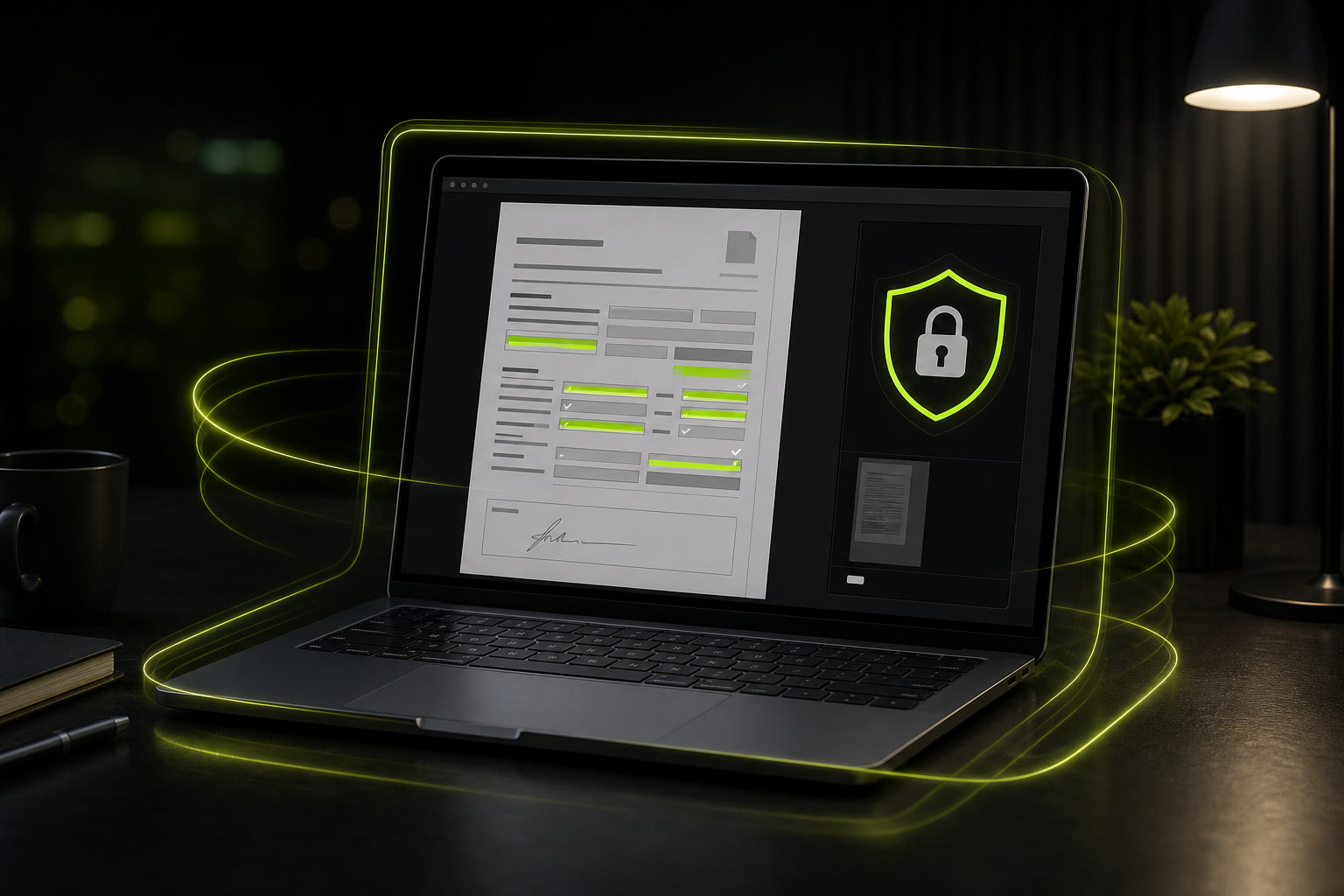
Every time you upload a PDF to an online filler, you are making a decision about your data — whether you realise it or not. That tax form with your government identifier. That rental application with your bank details. That medical intake form with your health history. Where does it all go the moment you hit "upload"?
The answer is uncomfortable: it goes to a server you do not control, in a data centre you have never visited, run by a company whose data retention policy you have probably never read. But there is another way — one where your PDF never leaves your device at all. This article explains how local PDF processing works, why it matters, and how to fill forms without ever handing your data to a stranger.
What Actually Happens When You Upload a PDF to a Cloud Filler
Most online PDF fillers follow the same pattern: you upload your file, their server processes it, you edit it through a web interface, and then you download the result. It sounds harmless enough — but every step in that chain has privacy implications that are rarely disclosed upfront.
Step 1: Your file is transmitted over the internet
The moment you drag your PDF into a cloud filler, your file — containing whatever personal data is on that form — travels across the network to a remote server. Even with HTTPS encryption, the file now exists on a machine you do not own.
Step 2: Your PDF is stored on a server — temporarily or permanently
Most services store uploaded files on their servers for "processing." Some delete them after a set period — 30 minutes, 24 hours, 48 hours. Others keep them indefinitely. The terms of service are often vague, and you have no way to verify when or if your file is actually deleted.
Step 3: Server-side software reads and modifies your PDF
On the server, automated software parses your PDF, renders the pages, and applies your edits. This means your document's full content — names, addresses, financial figures, signatures — is readable by the server process, and potentially by anyone with access to that server's logs or file system.
Step 4: You download the result — but copies may remain
You save your filled PDF, but what about the copy on the server? If the service experiences a data breach, or if an employee accesses stored files, or if the company is acquired and data policies change — your form data is exposed. You have no control over what happens after you close the browser tab.
This is the default experience for most people who search for "fill PDF online." The convenience is real, but the privacy cost is hidden — and it is higher than most users realise.
How Local Processing Works — No Upload Required
Local PDF processing flips the model entirely. Instead of sending your file to a remote server, the software runs inside your browser and works with the file directly on your device. Here is how it works, step by step:
Step 1 — Browser loads the application code
When you open a browser-based PDF filler, your browser downloads the application's HTML, CSS, and JavaScript files — the same as any website. This code contains the PDF processing engine. Once loaded, the app is fully self-contained and ready to work with local files.
Step 2 — Your PDF is read directly into browser memory
When you select a PDF file, the browser reads it using the standard File API. The file's bytes are loaded into your device's RAM — the same memory your browser uses to display this webpage. PDF Form Filler does not make a network request containing the PDF or its contents. The working file data stays in browser memory for the editing session.
Step 3 — JavaScript renders the PDF on your screen
A JavaScript PDF library (like PDF.js, the same engine that powers Firefox's built-in PDF viewer) parses the file and draws each page onto an HTML canvas element. Your text annotations are layered on top using standard DOM elements. Everything — rendering, editing, page navigation — happens in real time on your CPU, never on a server.
Step 4 — The filled PDF is saved directly to your device
When you hit "Save," the JavaScript code creates a new PDF file in memory — embedding your text annotations into the document — and triggers a browser download. The file is written straight to your downloads folder. At no point in the entire workflow does any part of your PDF leave your computer.
The document workflow runs in the browser. PDF Form Filler parses, displays, edits and saves the selected file without transmitting the PDF or its contents to a document-processing server. To inspect this, open your browser's Developer Tools and watch the Network panel while selecting a test PDF: ordinary website analytics may appear, but no request contains the PDF file or document data.
Your PDF never leaves your device. PDF Form Filler processes the document in browser memory using local JavaScript. It does not upload the PDF or its contents to a document-processing server. Ordinary website analytics do not receive document data.
Why Local Processing = Better Privacy
The privacy benefits of local processing go far beyond "your file is not uploaded." When your PDF stays on your device, an entire category of privacy and security risks simply disappears.
Less server-side exposure. Cloud services can suffer security incidents. If a PDF filler stores your form on its server—even temporarily—that creates another copy and another system that must be protected. Local processing avoids creating that server-side copy. You still need to secure your own device and handle the saved PDF carefully.
Fewer third-party handling questions. Uploading medical, financial, legal or client records to another service can trigger privacy, contractual and vendor-review requirements. Local processing removes that particular transfer, but it does not remove your organisation's responsibilities. Follow your own policies and legal obligations for the device, the source document and the saved copy.
No document copy retained by our servers. Because the PDF is not uploaded, PDF Form Filler has no server-side copy to retain. The app releases its in-browser working data when the page is closed or refreshed; the source and saved files remain wherever you keep them on your device.
No document-processing provider access. Since PDF Form Filler does not receive the PDF, its staff and systems cannot inspect the document. Access still depends on the security of your device, browser, extensions and saved-file location.
Cloud Filler vs Local Filler: What Happens to Your Data at Each Step
Let's walk through the same form-filling workflow with both approaches side by side, so the difference is unmistakable.
File selection — Cloud: uploaded to a remote server | Local: loaded into browser RAM
With a cloud filler, your file immediately travels across the internet the moment you select it. With a local filler, the browser reads the file from your own disk into memory — no network activity at all.
Processing — Cloud: server parses your PDF | Local: JavaScript parses it on your device
Cloud services run proprietary software on their infrastructure to render and modify your PDF. Local processing uses open-source JavaScript libraries running on your CPU. The visual result is the same — but only one approach keeps your file contents private.
Editing — Cloud: every keystroke may be sent to the server | Local: all edits stay in memory
Some cloud fillers stream your edits to the server in real time. Even those that buffer locally still rely on the server for the final save operation. Local fillers keep every character you type in your browser's memory, and the save happens entirely on your machine.
Saving — Cloud: file is rebuilt on the server, then downloaded; server copy persists | Local: file is built in memory, saved directly to your downloads
With cloud fillers, you download the finished file — but the server likely retains a copy. With local fillers, the finished PDF goes straight from your browser to your hard drive. No intermediate copies exist anywhere else.
The pattern is consistent at every stage: cloud fillers introduce a middleman that can see, store, and potentially leak your data. Local fillers eliminate the middleman entirely.
Documents That Deserve Local Processing
Local processing is particularly useful when a form contains information you would not want copied to an unknown service: tax and financial details, medical information, employment contracts, tenancy applications, government identifiers or other confidential records.
Not every PDF is sensitive. A public brochure or blank recipe is low risk. A useful rule is to check whether the document contains personal, financial, health, legal or client information. If it does, keeping the file on your own device removes an unnecessary transfer and storage step.
Use It in a Modern Browser—No Software Installation
PDF Form Filler works in current versions of Chrome, Edge, Firefox, and Safari on desktop and mobile devices. Load the app, choose the local PDF, add the required form details and save the completed copy. The application code loads from the website, while the selected PDF remains in your browser on your device.
Frequently Asked Questions
Is PDF Form Filler really processing my PDF locally?
Yes, absolutely. The PDF parsing, page rendering, text overlay, and file saving are all done by JavaScript running inside your browser. Your file is loaded into your device's RAM via the browser's File API and never transmitted to any server. The code that processes your PDF comes from our server on the initial page load, but your PDF data itself never leaves your computer.
How can I verify that my PDF is not being uploaded?
There are two straightforward ways. First, disconnect your internet after the page loads — the tool continues to work perfectly with any PDF you open, proving no network communication is needed. Second, open your browser's Developer Tools (F12), go to the Network tab, and watch for requests when you select or edit a PDF. You will see no file upload activity. If a tool were secretly uploading your PDF, it would show up here.
Do I need an internet connection to use it?
You need a connection for the initial page load so your browser can download the app's code (HTML, CSS, JavaScript). Once the page is loaded, you can go completely offline — disconnect Wi-Fi, enable airplane mode — and everything continues to work. File selection, form filling, navigating pages, and saving the completed PDF all happen locally with zero network dependency.
Does local processing make it slower than cloud-based fillers?
No — in most scenarios, local processing is actually faster. There is no upload wait time (which can be significant for large or multi-page PDFs), no server processing queue, and no download delay. The PDF opens instantly because the file is already on your device. The only limiting factor is your device's processing power, and modern browsers — even on phones — handle PDF rendering efficiently. For typical forms under 50 pages, you will not notice any performance difference compared to a desktop PDF application.
The Bottom Line
Filling a PDF form should not require you to hand your personal documents to a stranger. The convenience of cloud-based tools is real, but it comes at a privacy cost that most services bury in their terms of service — if they disclose it at all.
Local browser processing changes the equation. Your PDF stays on your device instead of being copied to a document-processing server. That reduces server-side retention and third-party exposure, though you still need to secure your device, handle the saved file carefully and meet any workplace or legal obligations. You open the app, select your file, fill it out and save it—the familiar workflow with one unnecessary transfer removed.
Fill privately — no PDF upload
Your PDF stays on your device. No server, no upload, no exposure. Fill any form with complete privacy.
👉 Start filling your PDF — private & free