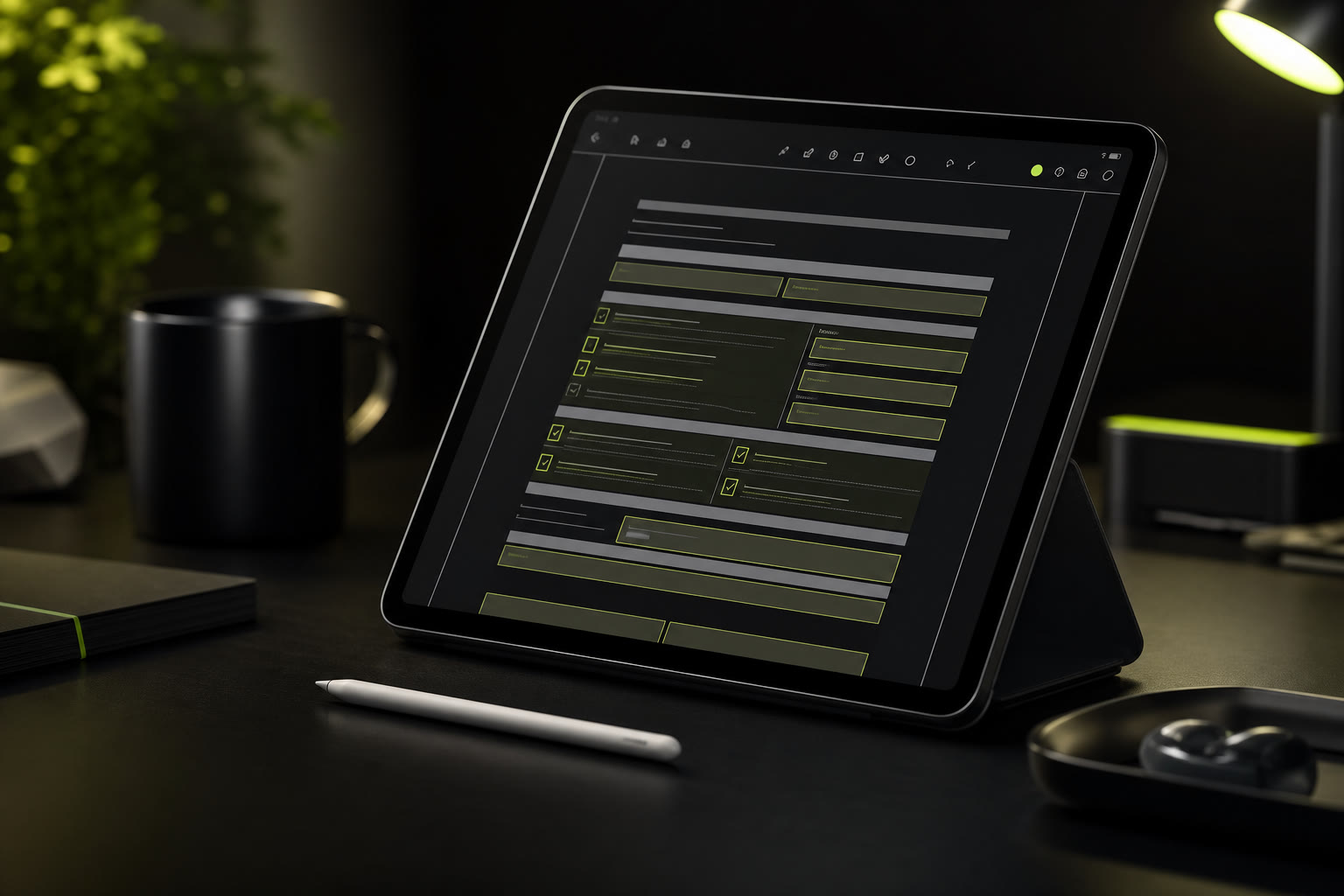
You are sitting on the couch with your iPad. A PDF form lands in your inbox — maybe a permission slip for school, a rental agreement that needs signing, or a medical intake form for tomorrow's appointment. You could get up, walk to your desk, and fire up the laptop. But the tablet is already in your hands. It should be the easiest device in the house for filling forms. And with the right tool, it is.
Here's how to fill a PDF form on your iPad or Android tablet — completely free, no app install, no sign-up, and no uploading your file anywhere. Just your browser, your fingers, and a couple of minutes.
Why Tablets Are Perfect for Filling Forms
For years, tablets were treated as second-class devices for productivity. But when it comes to filling PDF forms, they are arguably better than a desktop. Here is why:
Big screen, no bulk. An iPad or Galaxy Tab gives you a screen large enough to read form fields comfortably — much better than squinting at a phone. But unlike a laptop, you can hold it in one hand and tap with the other. You can fill forms standing in the kitchen, sitting on the train, or lying on the sofa.
Touch input is natural for forms. Tapping through form fields is faster and more intuitive with a finger than with a mouse. Tap a field, the on-screen keyboard pops up, type your answer, tap the next field. It mimics the way you would fill a paper form, but without the pen and without the hand cramps.
Everything is built in. Modern tablets — whether iOS, Android, or Fire OS — ship with fully capable browsers that handle PDF rendering natively. Safari on iPadOS, Chrome on Android, and Silk on Fire tablets all support the web APIs needed for browser-based PDF editing. You do not need to install a single extra app.
The killer feature: your files stay local. On a tablet, your documents already live in Files, Downloads, or a cloud folder. A browser-based PDF filler that processes everything on-device means your sensitive forms never leave the tablet. No upload, no server, no privacy headache.
How to Fill a PDF on Your iPad or Tablet
The process takes about two minutes from open to save. Here it is, step by step:
Step 1 — Open the tool in your tablet's browser
On your iPad, open Safari. On an Android tablet, open Chrome. On a Fire tablet, open Silk. Navigate to the PDF Form Filler app. The page loads in seconds — no download, no account creation, no waiting. You are on the editor immediately.
Step 2 — Select your PDF from your tablet
Tap the file selector button. Your tablet's native file picker opens — on iPad this is the Files browser, on Android it is the system file picker. Choose the PDF form you need to fill. The file is read directly in your browser. Nothing is uploaded. If your PDF is in iCloud, Google Drive, or Dropbox, you can pick it from there too.
Step 3 — Tap and type into each form field
Your PDF appears on screen. Tap on any form field and your tablet's keyboard slides up. Type your text — it appears right where you tapped. Move through the form by tapping each field in sequence. You can fill interactive AcroForm fields or add text to flat PDFs that have no editable fields at all. Pinch to zoom if you need a closer look at small text.
Step 4 — Save the completed form to your tablet
When every field is filled, tap the Save button. Your completed PDF downloads straight to your tablet. On iPad, it lands in the Files app. On Android, it goes to the Downloads folder. From there, email it, send it via Messages, AirDrop it, or upload it wherever it needs to go. Done.
That is the entire workflow. No App Store, no Play Store, no subscription, no file upload. Just your tablet, your browser, and your form.
iPad vs Android Tablet vs Fire Tablet — What Works
PDF Form Filler works on every modern tablet, but the experience varies slightly depending on your device. Here is what to expect:
iPad (iOS Safari)
iPadOS Safari is a desktop-class browser, and it handles the PDF Form Filler exceptionally well. The large Retina display makes form fields crisp and easy to read. The Files integration is seamless — you can open PDFs directly from iCloud, your iPad's local storage, or any connected cloud service. Safari's built-in download manager puts the finished PDF right into your Files app. For iPad users, this is the smoothest experience. iPadOS 15 or later recommended for full Files integration.
Android Tablet (Chrome)
Chrome on Android tablets provides a solid, fast experience. The file picker connects to your device storage and any installed cloud providers. Google's PDF rendering in Chrome is reliable across Samsung Galaxy Tabs, Lenovo Tabs, and Google Pixel Tablets. One thing to note: on some Android tablets, the default download location for saved PDFs varies by manufacturer, so check your Downloads folder or Files app after saving. Android 10 or later recommended.
Amazon Fire Tablet (Silk Browser)
Fire tablets run Amazon's Silk browser, which is based on Chromium. The PDF Form Filler works here too, with a couple of caveats. The file picker on Fire OS can be less intuitive than on iPad or standard Android — your PDFs are typically in the "Docs" or "Downloads" folder. Silk's performance on older Fire tablets (Fire 7, for example) can feel sluggish with very large PDFs. For Fire HD 8 or Fire HD 10, the experience is smooth. Fire OS 7 or later recommended.
Your PDF never leaves your device. Regardless of which tablet you use — iPad, Android, or Fire — PDF Form Filler processes everything locally in your browser. Your form is not uploaded to a server, not stored in anyone's cloud, and never transmitted anywhere. You can verify this by turning on airplane mode: the tool works perfectly offline.
What Works Well on Tablet / What's Tricky
Filling PDFs on a tablet is genuinely great, but let us be honest about where it shines and where you might hit a snag.
What works brilliantly
Single-page forms. Permission slips, waivers, intake forms, and short applications are a joy on a tablet. The screen is big enough that you can see the whole form without scrolling sideways, and you can tap through fields faster than typing on a desktop.
Forms with large text fields. If a form has a few open-ended text boxes (like "describe the incident" or "additional comments"), a tablet with an external Bluetooth keyboard becomes a highly productive setup. The tablet screen acts as a clean, focused workspace.
On-the-go scenarios. Filling a form in a waiting room, on a bus, or at a café — this is where tablets beat laptops every time. No need to find a flat surface. Just hold the tablet and type.
Reviewing before sending. After filling, you can scroll through the entire PDF on the tablet's screen to double-check every entry before you hit send. The pinch-to-zoom gesture makes it easy to verify details.
What can be tricky
Dense multi-column forms. Some government or tax forms are laid out in tight columns with tiny font sizes. On a smaller tablet (8-inch screen), you may need to zoom in and pan around, which slows things down. An 11-inch or 12.9-inch iPad handles these better.
Handwriting and signatures. PDF Form Filler is built for typed text, not stylus input. You cannot draw a signature with Apple Pencil directly in the tool. If you need a handwritten signature, type your name or use a separate app to sign the PDF before or after filling.
Very large files (50+ MB). While the tool handles most PDFs smoothly, very large files with hundreds of pages or high-resolution embedded images may load slowly on older tablets. This is a device limitation, not a tool limitation — newer iPads and Android tablets handle these without issue.
Frequently Asked Questions
Do I need to install an app to fill PDFs on my tablet?
No. PDF Form Filler works entirely in your tablet's browser — no App Store or Play Store download needed. Just open Safari on your iPad, Chrome on your Android tablet, or Silk on a Fire tablet and you are ready to go. The tool loads instantly and requires no sign-up, no account, and no email address.
Can I use an Apple Pencil or stylus to fill forms?
PDF Form Filler is designed for typed text entry, not handwriting or stylus annotation. You tap to place your cursor and type using the on-screen or Bluetooth keyboard. For forms that require a signature, you can type your name as a signature or use a separate drawing or PDF annotation app to add the signature before or after filling the rest of the form. The Apple Pencil works for navigating and tapping, but the tool does not convert handwriting to typed text.
Does it work offline on my tablet?
Yes, absolutely. Once the PDF Form Filler page loads in your browser, you can disconnect from the internet entirely and still fill forms. All processing happens locally on your tablet — opening the PDF, adding text, and saving the result. No internet connection is needed at any point after the initial page load. This is especially useful on Wi-Fi-only iPads when you are away from a network, or on any tablet in an area with poor connectivity.
How do I save the filled PDF on my tablet?
After filling your form, tap the Save button. The completed PDF downloads directly to your tablet's local storage. On iPad, it typically saves to the Files app under "On My iPad" or "Downloads." On Android tablets, it appears in the Downloads folder accessible through the Files app. On Fire tablets, look in the "Docs" or "Downloads" folder. From there, you can share the PDF via email, messaging apps, AirDrop (iPad), or upload it to any cloud storage service — Google Drive, iCloud, Dropbox, OneDrive, or anything else.
The Bottom Line
Your tablet — whether it is an iPad, a Samsung Galaxy Tab, or an Amazon Fire — is already a perfect tool for filling PDF forms. You do not need to install anything. You do not need to create an account. You do not need to upload your private documents to a stranger's server.
Open your browser. Select your PDF. Tap and type. Save. That is the entire story. The big screen and touch input make tablet form-filling faster and more comfortable than on a laptop, and the privacy of local-only processing means your data stays exactly where it should — on your device.
Start filling — free on any tablet
No app install, no sign-up, no upload. Just open your browser and fill PDF forms with touch. Works on iPad, Android, and Fire tablets.
👉 Start filling your PDF — free