You receive an email with a PDF form attached. You open it, glance at the fields, and immediately think: "I need to print this." So you fire up the printer — except it's out of paper. Or low on ink. Or jammed. Or you don't even own a printer. And even if the printer cooperates, you still have to fill it out by hand, then scan it back into a digital file that looks slightly crooked and washed out.
It's 2026. We send rockets to space and carry supercomputers in our pockets. Surely there's a better way than printing, handwriting, and scanning a form. There is. This guide shows you how to fill any PDF form completely digitally — no printer, no paper, no ink, no scanner — in minutes, for free.
The Problem: Printing Just to Write on Paper
The print-fill-scan ritual is one of those workflows that stuck around long past its expiration date. Here's why it's so frustrating — and why millions of people still do it every day:
You need a working printer. Printers are notoriously unreliable. They run out of ink at the worst possible moment. They jam. They refuse to connect to Wi-Fi. They demand a firmware update before they'll print anything. If you don't own a printer at all, you're out of luck — or headed to the library or a print shop.
Handwriting introduces errors. Not everyone has neat handwriting. A rushed scribble on a cramped form field can lead to misread names, wrong numbers, or rejected applications. If you make a mistake, you have to print the page again and start over.
Scanning back is another bottleneck. Once the form is filled, you need to scan it back into a digital file. Phone scanning apps have improved, but they still produce images with shadows, skewed angles, and inconsistent contrast. A flatbed scanner is better — if you have one, and if it's connected, and if the drivers haven't decided to stop working today.
It wastes time, paper, and ink. A single form might not seem like much, but multiply it by every form you fill in a year — tax documents, school permission slips, rental applications, insurance claims, medical intake forms — and the cost in time, materials, and frustration adds up fast.
How to Fill a PDF Without Printing — 4 Simple Steps
The alternative is a browser-based PDF form filler that processes your form locally on your device. No printing, no scanning, no downloads, no accounts. Here's exactly how it works:
Step 1 — Open the PDF Form Filler in your browser
Navigate to the app in any modern browser — Chrome, Safari, Firefox, Edge, or even your phone browser. There's nothing to install, no sign-up form to complete, and no waiting. The editor loads instantly and is ready to go.
Step 2 — Select the PDF form from your device
Click the file picker and choose the PDF you need to fill. Your file is read directly by your browser — it is never uploaded to a server. Everything stays on your device, in your browser's memory. You can verify this by disconnecting from the internet after the page loads — it still works.
Step 3 — Click on any field and start typing
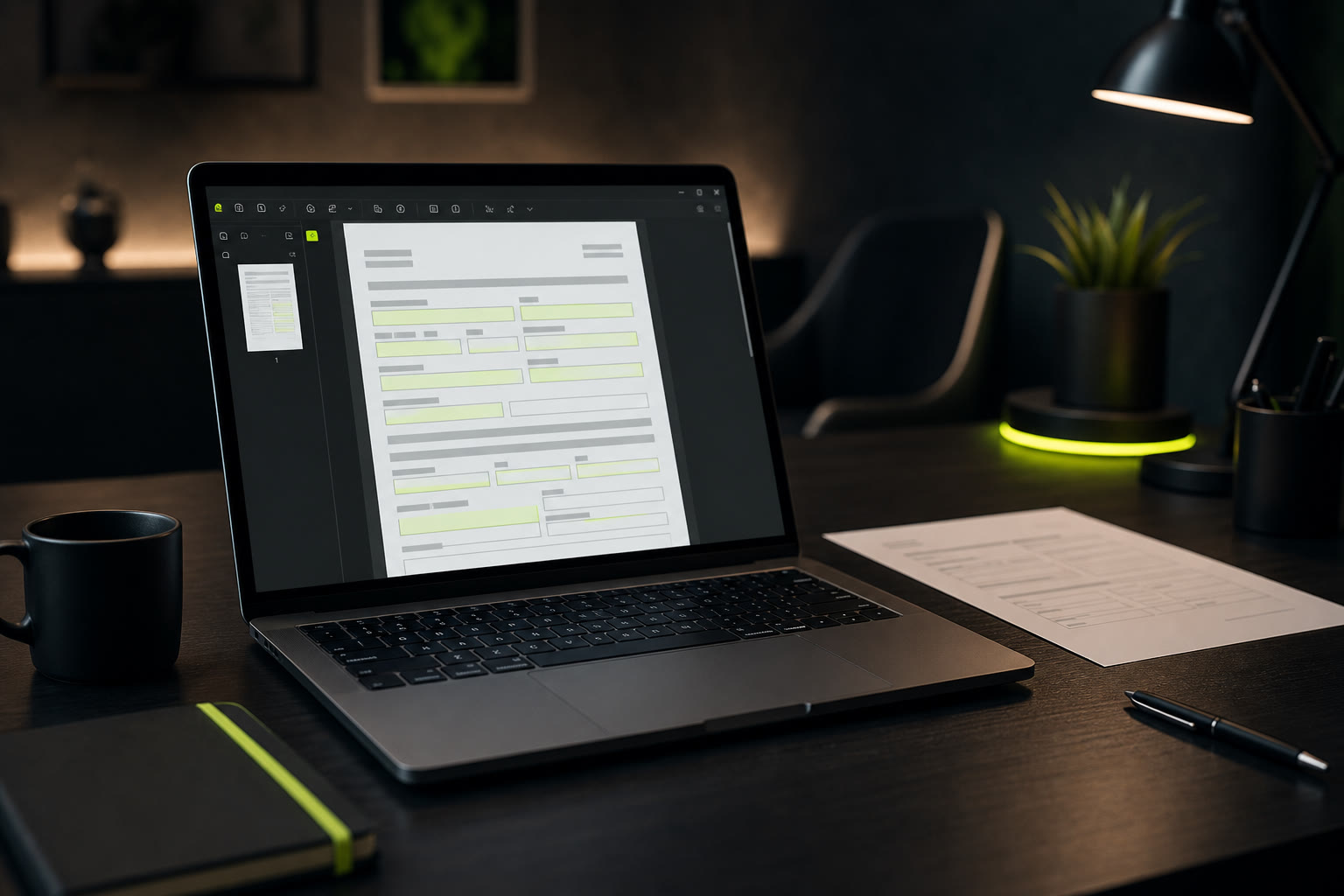
The PDF renders on screen, and you can click anywhere to place text. This works whether the form has built-in interactive fields or is a flat, static PDF. Type into each field, adjust text placement as needed, and move through the form as quickly as you would on paper — except your text is always perfectly legible, and you can fix mistakes instantly without starting over.
Step 4 — Save the completed PDF directly to your device
When you're done, hit "Save" and the filled PDF downloads straight to your computer or phone. No scanning. No print quality issues. No crooked pages. Just a clean, crisp digital PDF, ready to email, upload, or archive.
That's the entire workflow. From opening the browser to having a completed, ready-to-send PDF, the whole process takes just a couple of minutes — and you never touched a printer, a pen, or a scanner.
Your PDF never leaves your device. PDF Form Filler runs entirely in your browser using local JavaScript. Your file is not uploaded, stored, or transmitted anywhere. The processing happens in your computer's memory, and the only person who ever sees your data is you.
Why Paperless Is Better — 3 Reasons to Ditch the Printer
Going paperless isn't just about convenience. There are concrete, measurable benefits to filling PDF forms digitally instead of printing them:
1. Speed — minutes instead of a whole production
The print-fill-scan pipeline has multiple slow, error-prone steps: find a printer, ensure it's connected and has paper and ink, wait for it to print, find a pen, write legibly, correct mistakes, find a scanner or scan app, position the page, crop and adjust the scan, save the file. Each step is a potential failure point. Digital filling collapses all of that into one smooth action: open, type, save, done. What used to take 10 to 15 minutes now takes 2.
2. Environmental impact — every sheet counts
Paper production is resource-intensive. A single sheet of paper requires about 10 litres of water to produce, and the average office worker goes through roughly 10,000 sheets per year. Printing a form just to write on it and scan it back is the definition of waste. By filling PDFs digitally, you eliminate the paper, the ink cartridge consumption, the printer energy draw, and the eventual recycling or landfill disposal. If you fill three forms a week digitally instead of printing them, you save over 150 sheets of paper per year — and that's just one person.
3. No scanning back — better quality, less hassle
A scanned document is never as clean as a digital original. Phone scans introduce perspective distortion, uneven lighting, and background noise. Flatbed scanners are better but require you to be at your desk with the right software. And if you need to re-edit the form later — say you made a mistake or need to update a field — a scanned PDF is essentially a static image. You'd have to print it again and start over. A digitally filled PDF keeps the text as actual text, so the output looks professional and can be re-edited if needed.
What PDF Form Filler Can and Cannot Do
We believe in being upfront about what the tool does — and what it does not. PDF Form Filler is built for one core job: letting you type text onto any PDF form without printing.
What it does well: Add text anywhere on any PDF. Fill interactive AcroForm fields as well as flat, non-interactive PDFs. Handle multi-page documents. Process everything locally in your browser — no upload, no server, no privacy risk. Work instantly with no sign-up, no account, and no payment. It handles government forms, tax documents, school forms, rental applications, insurance paperwork, and medical intake forms equally well.
What it does not do: It is not a full PDF editor — you cannot delete, move, or redact existing content. It does not extract text from scanned images (OCR). It does not add digital signatures or e-sign workflows. It is not a form builder — you cannot create new interactive form fields. For those tasks, dedicated tools exist. But for the everyday task of filling out a PDF form without the printer-and-scan dance, PDF Form Filler is the simplest, fastest, and most private option available.
Frequently Asked Questions
Do I really never need to print a PDF form again?
Yes. With PDF Form Filler, you can open any PDF form, click on any field, type your information, and save the completed file — all without touching a printer. The output is a clean, professional PDF that looks better than a scanned printout. There is no step in the process that requires paper, ink, or a scanner.
How is paperless PDF filling better for the environment?
Every form you fill digitally saves at least one sheet of paper, plus the ink and energy used by the printer. Over a year, filling just three forms per week digitally instead of printing them saves over 150 sheets of paper — roughly half a tree per person. Multiply that across millions of users, and the environmental benefit is substantial. It's a small change with a real cumulative impact.
Will the saved PDF look as good as a printed and scanned copy?
Better. When you print and scan, the text loses sharpness — handwritten ink can smudge, and phone scans introduce shadows, skew, and noise. Digital text is perfectly crisp, evenly spaced, and 100% legible. The output looks more professional because the text is rendered as clean vector content rather than a photograph of handwriting. If you need to submit a form for an official purpose, a digitally filled PDF almost always looks cleaner than a scanned printout.
Can I fill a PDF form without printing on my phone?
Absolutely. PDF Form Filler runs in any modern mobile browser — Safari on iPhone, Chrome on Android, or any tablet browser. The interface works with touch input, so you can tap on fields and type using your phone keyboard. You can select PDFs from your device's file picker, including files from email attachments or cloud storage. The saved PDF downloads directly to your phone. No app store download is needed, and because there's no file upload, it works even on slower mobile connections.
The Bottom Line
The print-fill-scan workflow is a relic. It was the only option for decades, so we got used to it — but that doesn't mean it's still the right way. Every time you print a form just to fill it out and scan it back, you're spending time, money, and resources on a problem that has already been solved.
Going paperless with PDF forms isn't complicated, it doesn't require special software, and it doesn't cost anything. You open a browser, you type, you save. Your data stays on your device, your desk stays clear of clutter, and your forms look better than anything a printer and scanner could produce.
Start filling — no printer needed
Fill any PDF form directly in your browser. No printing, no scanning, no sign-up. Just open, type, save — and reclaim your desk.
👉 Start filling your PDF — free & paperless