You open a PDF form someone emailed you. Your computer doesn't have Adobe Acrobat. You Google "how to fill a PDF without Adobe" and immediately hit a wall — download this, subscribe to that, create an account, start a free trial. All you wanted to do was type your name and address into a form.
Here's the truth: you don't need Adobe Acrobat to fill out a PDF form. You don't need any software at all. A free browser-based alternative lets you open, fill, and save any PDF form in under a minute — with no download, no subscription, and no sign-up. This guide shows you exactly how.
Why Pay for Adobe Just to Fill a Form?
Adobe Acrobat is a powerful tool. But for the single task of filling out a PDF form, it is massive overkill — and expensive overkill at that. Let's look at what you're actually paying for when you subscribe to Adobe Acrobat just to fill forms:
Adobe Acrobat Standard costs US$12.99/month (billed annually at US$155.88/year). That's over US$150 a year — to type text into PDF fields. Even if you use it every single day, you're mostly paying for features you will never touch: advanced document comparison, redaction tools, accessibility checks, and enterprise collaboration workflows.
Adobe Acrobat Reader is free — and many people don't realise this — but the free Reader can only fill forms that already have interactive fields built in. If someone sends you a flat PDF (a scanned form, an image-based document, or a PDF that was exported from Word without form fields), Adobe Reader cannot help you. It shows the form, but it won't let you type on it.
The hidden cost is friction. Even if you already have an Adobe subscription, the Acrobat desktop app is heavyweight. It takes several seconds to launch, it updates frequently, and it consumes significant system resources. For a quick form fill on a laptop or tablet, it feels like using a sledgehammer to push in a thumbtack.
A focused tool — one built specifically for the job of adding text to PDF forms — gets you from "I need to fill this form" to "done" faster than Acrobat can finish launching.
How to Fill a PDF Without Adobe (4 Steps)
The alternative is a browser-based PDF form filler that processes everything on your device. No uploads, no accounts, no Adobe required. Here is the complete workflow:
Step 1 — Open the filler in your browser (5 seconds)
Go to PDF Form Filler in any modern browser — Chrome, Firefox, Safari, or Edge. The app loads instantly. There is nothing to download and no account to create. It loads faster than Acrobat can launch on a typical desktop.
Step 2 — Select your PDF (3 seconds)
Click the file selector and choose the PDF form from your device. The file opens directly in your browser's memory. It is never uploaded to a server — everything happens on your machine, just like it would in a desktop application.
Step 3 — Type into every field (30–45 seconds)
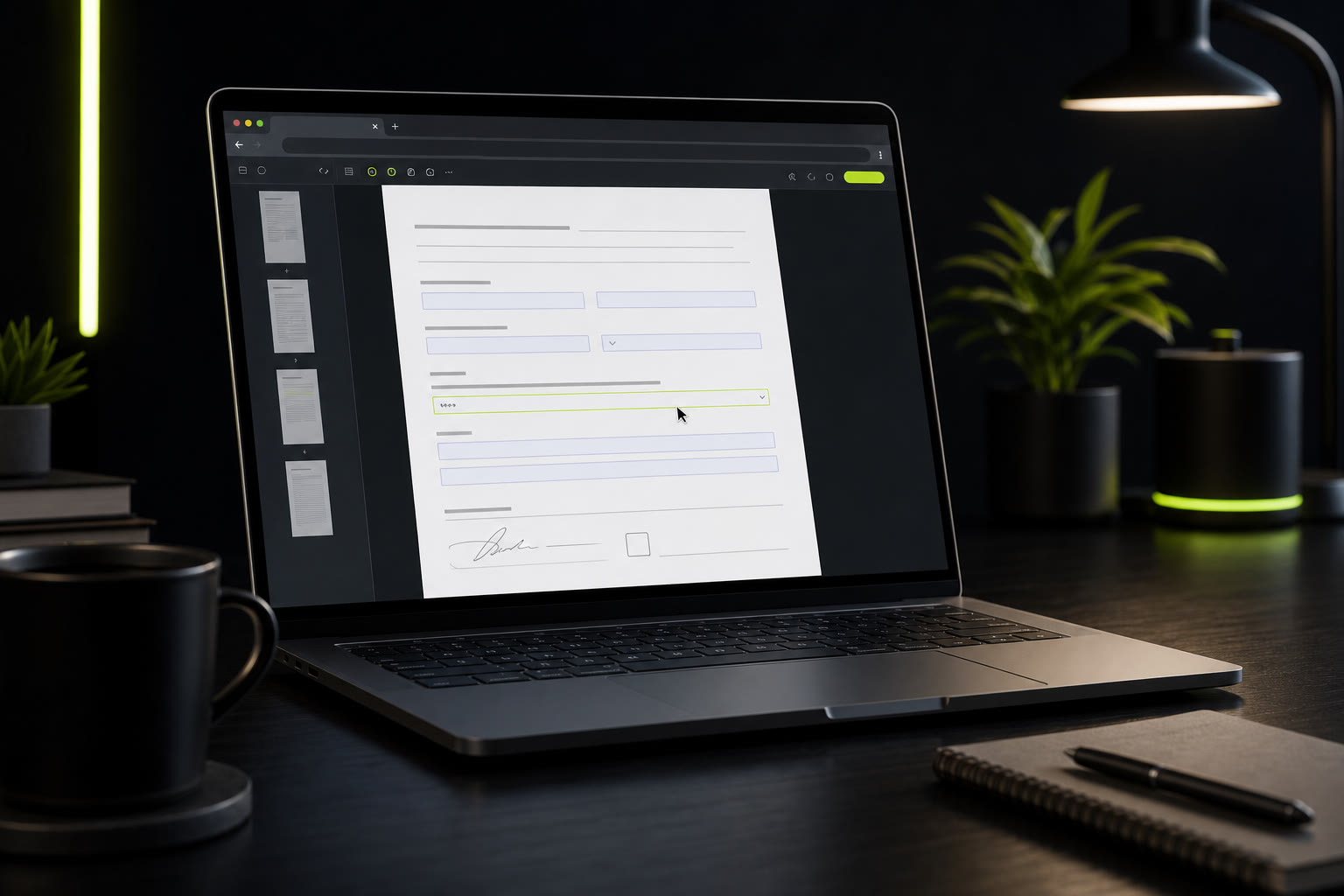
Click anywhere on the form and start typing. The filler handles both interactive AcroForm fields and flat PDFs that have no built-in form fields at all. Text lands exactly where you click. Adjust font size if needed, move through the fields, and fill everything out at your own pace.
Step 4 — Save and you're done (2 seconds)
Hit "Save" and the completed PDF downloads to your computer. That's it — no page limit, no "upgrade to export" prompt. Your filled form is ready to print, email, or submit. The entire process takes under a minute.
Your PDF never leaves your device. PDF Form Filler runs entirely in your browser using local JavaScript. Your file is never uploaded to a server, never stored in the cloud, and never accessible to anyone but you. You can verify this by disconnecting your internet — the tool works perfectly offline after the page loads.
Adobe Acrobat vs Browser Filler: Honest Comparison
We are not going to tell you that Adobe Acrobat is useless — it is not. But for the specific task of filling in a PDF form, the differences are stark. Here is a straightforward comparison:
Time to first text entry
Adobe Acrobat: 30–90 seconds (launch app, open file, wait for rendering). Browser filler: Under 10 seconds (open tab, select file, type). The browser tool is ready before Acrobat has finished its splash screen.
Cost
Adobe Acrobat: US$12.99/month (Standard) or US$19.99/month (Pro) — US$156–240/year. Reader is free but limited to interactive forms only. Browser filler: Free — no subscription, no trial, no payment of any kind.
Flat / scanned PDF forms
Adobe Reader: Cannot fill — no interactive fields means no text entry. Acrobat Pro can add text boxes but requires manual placement. Browser filler: Click and type anywhere on any PDF, interactive fields or not. Works the same way on every document.
Privacy + Terms
Adobe Acrobat: Desktop processing is local; Adobe's online services and cloud storage may transmit your data. Some features require an internet connection and Adobe Document Cloud. Browser filler: 100% local. File processed entirely in your browser's memory. Zero data transmission.
Device and platform support
Adobe Acrobat: Windows and Mac desktop. Mobile apps exist but are limited. Linux is not supported. Browser filler: Any device with a modern browser — Windows, Mac, Linux, Chromebooks, iPhone, Android, iPad. No installation required on any platform.
For the job of filling a PDF form, the browser-based tool wins on speed, cost, privacy, and accessibility. The only reason to reach for Adobe is if your task goes beyond filling — and we will cover that honestly next.
When Adobe Acrobat IS Worth It
We believe in being honest. Adobe Acrobat is not a bad product — it is a comprehensive PDF suite that does many things a simple form filler cannot. If your workflow includes any of the following, Adobe Acrobat might be worth the subscription:
Optical Character Recognition (OCR). If you regularly need to convert scanned paper documents or image-based PDFs into searchable, selectable text, Adobe's OCR engine is one of the best in the industry. A browser-based form filler does not extract text from images — it overlays new text. For OCR, Adobe is the right tool.
Digital signatures and e-sign workflows. If you need to add a cryptographically valid digital signature to a PDF, or if you need to send documents for e-signature with an audit trail, Adobe Sign (included with Acrobat Pro) handles that end-to-end. A simple form filler adds visual signature overlays but does not provide cryptographic signing.
Advanced PDF editing. If you need to delete, rearrange, or rotate pages; redact sensitive information permanently; modify existing images and graphics; or edit the underlying document structure, Acrobat Pro is the industry standard. A browser filler is purpose-built for adding text, not for document restructuring.
The bottom line: If your task is "fill in this form and send it back," you do not need Adobe. A free browser-based filler will get it done faster, cheaper, and more privately. Save the Acrobat subscription for the jobs that genuinely require its heavyweight feature set.
Frequently Asked Questions
Is there a free alternative to Adobe Acrobat for filling PDF forms?
Yes — PDF Form Filler is a completely free, browser-based alternative that lets you fill any PDF form instantly. No download, no subscription, and no account required. It works on any device with a modern browser and processes your PDF entirely on your device. You do not need Adobe Acrobat to fill out a form.
Does a browser-based PDF filler produce the same output quality as Adobe?
For filling text into PDF forms, the output quality is identical. The text is embedded directly into the PDF using standard PDF rendering, so the completed form looks clean, sharp, and professional. Adobe Acrobat has advantages for advanced editing, OCR, and digital signatures, but for simple text entry the result is indistinguishable.
Is it safe to fill a PDF without Adobe? What happens to my data?
PDF Form Filler is more private than cloud-based PDF tools — including Adobe's online services. Your PDF never leaves your device. It is processed entirely in your browser using local JavaScript. There is no upload, no server storage, and no data transmission of any kind. You retain full control of your document from start to finish.
What features does Adobe have that a free filler doesn't?
Adobe Acrobat Pro offers OCR (converting scanned documents into searchable text), advanced PDF editing (rearranging pages, redacting content, modifying images and graphics), digital signature workflows with cryptographic verification, and automatic form-field detection. A browser-based filler focuses on one job — adding text to forms quickly — and does it faster and for free. Choose the right tool for the task at hand.
The Bottom Line
You do not need Adobe Acrobat to fill out a PDF form. You do not need a subscription, a download, or an account. The entire PDF industry has spent decades convincing you that filling out a form requires expensive professional software — but for the simple, everyday task of typing your name and address into a document, that software is unnecessary.
A browser-based PDF form filler does the job faster, costs nothing, works on any device, and keeps your data private by processing everything locally. Adobe Acrobat has its place — OCR, advanced editing, digital signatures — but filling forms is not one of them. Next time a PDF lands in your inbox, skip the subscription and get it done in under a minute.
Start filling — no Adobe needed
Fill any PDF form in under 60 seconds. No download, no subscription, no sign-up. Works on any device, right in your browser.
👉 Start filling your PDF — free